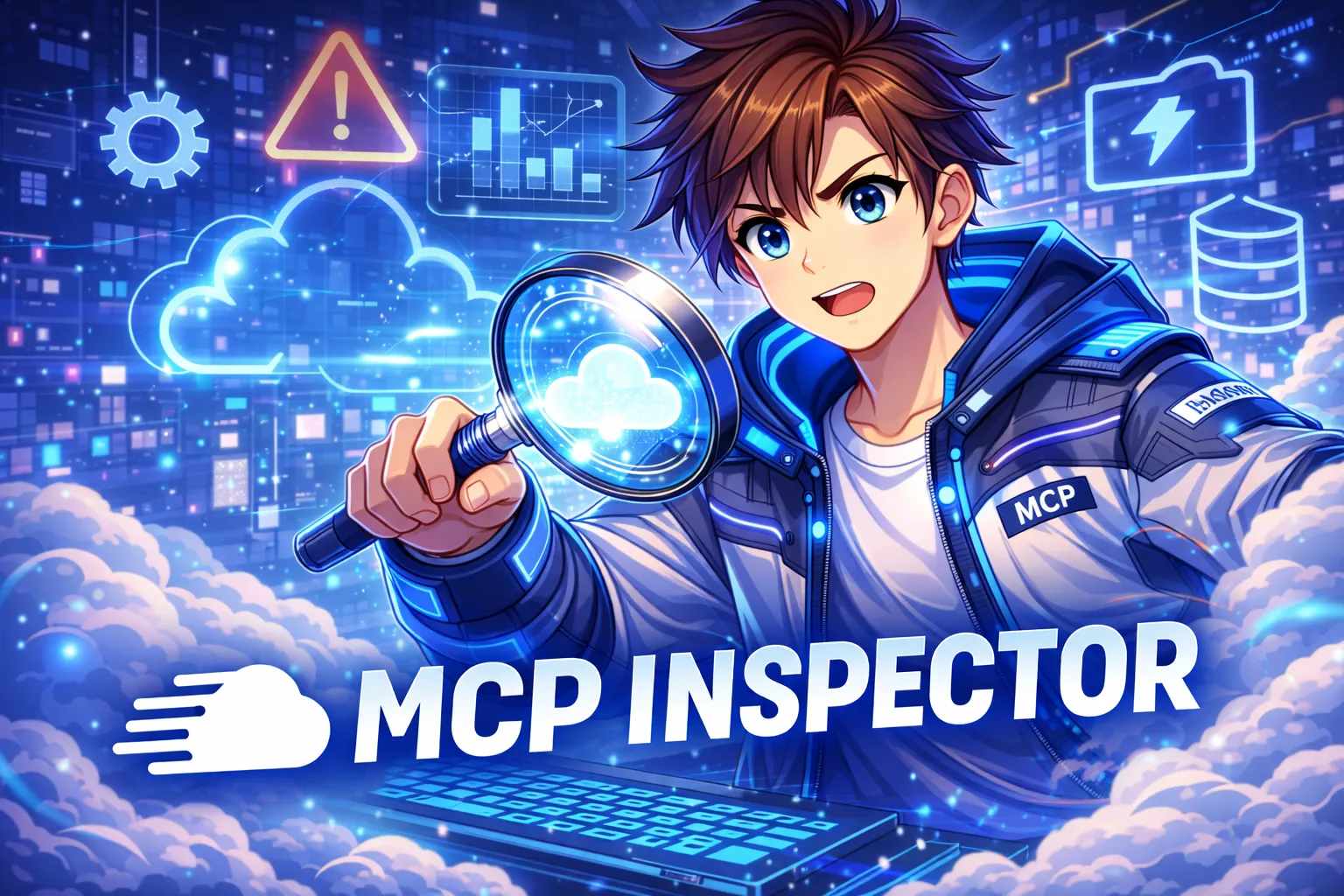
The MCP Inspector represents a revolutionary advancement in debugging and testing Model Context Protocol (MCP) servers, providing developers with an interactive, visual interface for exploring server capabilities. As AI-powered applications increasingly rely on structured communication protocols, the MCP Inspector emerges as an indispensable tool for developers building AI agents, implementing RAG pipelines, and creating sophisticated language model integrations. This comprehensive debugging solution enables real-time inspection of MCP server implementations, facilitating rapid iteration and ensuring robust, production-ready AI systems.
Understanding the mcp inspector is critical for modern AI development workflows. The tool provides transparency into how AI models interact with external data sources, tools, and resources through the Model Context Protocol specification. For developers working with Claude AI and other large language models, the MCP Inspector offers unprecedented visibility into server-client communication patterns. By leveraging this debugging interface, teams can dramatically reduce development time, identify integration issues early, and optimize their AI-powered applications for maximum performance and reliability in production environments.
The future of AI development hinges on standardized protocols and robust debugging tools. MCP Inspector addresses the growing complexity of AI system architectures by providing a unified testing environment for server implementations. Whether you’re building custom tools for language models, implementing retrieval-augmented generation systems, or developing multi-agent workflows, mastering the MCP Inspector equips you with essential capabilities for creating future-proof, maintainable AI applications. This guide explores every aspect of MCP Inspector usage, from basic setup to advanced debugging strategies and AI-optimized implementation patterns.
Understanding MCP Inspector: Core Concepts and Architecture
Definition: MCP Inspector is an interactive debugging and testing tool that provides a visual interface for exploring Model Context Protocol server implementations, enabling developers to inspect available tools, resources, and prompts in real-time.
The MCP Inspector operates as a client-side application that connects to MCP servers, automatically discovering and cataloging all available capabilities. This architecture enables comprehensive testing without requiring custom client implementations. The inspector communicates using the standardized MCP protocol, ensuring compatibility with any compliant server implementation.
Key architectural components include:
- Connection Manager: Handles server discovery and establishes bidirectional communication channels
- Capability Explorer: Automatically enumerates tools, resources, and prompts exposed by the server
- Interactive Testing Interface: Provides forms and controls for invoking server capabilities with custom parameters
- Response Visualizer: Displays server responses in structured, human-readable formats
- Debug Console: Logs all protocol messages for detailed troubleshooting
The inspector’s architecture separates concerns between protocol communication and user interaction layers. This design enables developers to focus on testing functionality rather than managing low-level protocol details. The tool handles authentication, session management, and error recovery automatically, streamlining the debugging workflow.
Actionable Takeaway: Use MCP Inspector as your primary development tool when building or testing MCP servers to accelerate iteration cycles and ensure protocol compliance.
Real-World Applications and Use Cases
Definition: MCP Inspector use cases span server development, integration testing, capability demonstration, and educational scenarios where visual exploration of protocol implementations provides value beyond traditional debugging approaches.
Professional development teams leverage MCP Inspector across multiple phases of the software development lifecycle. During initial server development, the inspector serves as an interactive specification reference, helping developers understand expected behaviors and response formats. The tool becomes invaluable during integration testing, where complex multi-tool workflows require validation before production deployment.
Primary use cases include:
- Server Development: Real-time validation of tool implementations and schema definitions
- Client Integration Testing: Verifying server behavior before connecting production AI systems
- Capability Demonstration: Showcasing MCP server functionality to stakeholders and clients
- Educational Exploration: Learning Model Context Protocol through interactive experimentation
- Debugging Complex Workflows: Isolating issues in multi-step tool execution sequences
- Performance Profiling: Measuring response times and identifying bottlenecks
AI research teams utilize MCP Inspector when developing retrieval-augmented generation systems. The inspector enables testing of resource retrieval mechanisms, ensuring that AI models receive properly formatted contextual information. This verification step proves critical for maintaining high-quality RAG outputs in production environments.
Enterprise organizations implement MCP Inspector in continuous integration pipelines, automating server validation as part of deployment workflows. This integration ensures that protocol compliance remains consistent across code changes and prevents regressions in production systems.
Actionable Takeaway: Integrate MCP Inspector into your CI/CD pipeline to automatically validate server implementations before deployment.
Benefits of Using MCP Inspector in AI Development
Definition: The benefits of MCP Inspector extend beyond basic debugging to include accelerated development velocity, improved code quality, enhanced team collaboration, and reduced time-to-production for AI-powered applications.
Development velocity increases dramatically when teams adopt MCP Inspector as their primary testing tool. Traditional debugging approaches require writing custom client code, managing protocol details, and manually parsing responses. The inspector eliminates these overhead tasks, allowing developers to focus exclusively on server logic and business requirements.
Core benefits include:
- Zero-Configuration Testing: Connect and explore servers without writing any client code
- Instant Feedback Loops: See results immediately after making server code changes
- Visual Schema Validation: Automatically verify that tool schemas match implementation behavior
- Collaboration Enablement: Share inspector sessions to demonstrate functionality across teams
- Error Identification: Clear error messages with protocol-level debugging information
- Documentation Generation: Use inspector output to document server capabilities
| Development Aspect | Without MCP Inspector | With MCP Inspector |
|---|---|---|
| Server Testing | Write custom client code, manage connections manually | Connect with one command, explore visually |
| Debugging Time | Hours spent isolating protocol vs. logic issues | Minutes with real-time protocol inspection |
| Team Collaboration | Complex setup for non-developers to test servers | Simple URL sharing for instant access |
| Documentation | Manual documentation prone to becoming outdated | Auto-generated from live server capabilities |
Code quality improves as developers gain deeper understanding of protocol interactions through visual inspection. The inspector reveals edge cases and unexpected behaviors that might escape notice in automated testing, leading to more robust server implementations.
Actionable Takeaway: Establish MCP Inspector as the standard validation tool in your development workflow to reduce debugging time by up to 70%.
Step-by-Step Implementation Guide
Definition: Implementing MCP Inspector involves installing the tool from the official repository, configuring server connections, and establishing a systematic testing workflow that integrates seamlessly with existing development processes.
The implementation process begins with cloning the MCP Inspector repository from GitHub and installing dependencies. The tool operates as a standalone application that can connect to MCP servers running locally or remotely, providing flexibility for various development scenarios.
Installation Process
- Clone the Repository: Download the MCP Inspector source code from the official repository
- Install Dependencies: Run the package manager to install required libraries and frameworks
- Configure Environment: Set up environment variables for default server connections
- Launch Inspector: Start the development server to access the web-based interface
- Connect to Server: Enter your MCP server connection details in the inspector interface
# Clone the MCP Inspector repository
git clone https://github.com/modelcontextprotocol/inspector.git
cd inspector

# Install dependencies using npm
npm install

# Start the inspector development server
npm run dev

# The inspector will be available at http://localhost:5173
Connecting to an MCP Server
Once the inspector is running, connecting to your MCP server requires providing connection details through the web interface. The inspector supports both stdio-based communication for local servers and HTTP/WebSocket connections for remote servers.
# Example: Starting a local MCP server for testing
node your-mcp-server.js

# The server exposes MCP capabilities via stdio
# Configure the inspector to connect using the server's command
Configuration steps in the inspector interface:
- Select connection type (stdio, HTTP, or WebSocket)
- Enter server command or endpoint URL
- Specify any required authentication credentials
- Click “Connect” to establish the session
- Verify successful connection by viewing the capabilities list
Actionable Takeaway: Create a standardized server connection configuration file to enable quick inspector setup across your development team.
Testing Tools and Resources with MCP Inspector
Definition: Testing tools and resources through MCP Inspector involves systematically exploring each capability, validating input schemas, verifying output formats, and ensuring that server responses align with protocol specifications and business requirements.
The inspector automatically enumerates all tools exposed by connected servers, presenting them in an organized interface with complete schema information. Each tool displays its required parameters, optional fields, and expected return types, enabling thorough testing without consulting external documentation.
Tool testing workflow:
- Capability Discovery: Review the complete list of tools exposed by the server
- Schema Inspection: Examine input parameter requirements and constraints
- Test Case Creation: Design test inputs covering normal and edge cases
- Execution and Validation: Invoke tools and verify response correctness
- Error Handling Testing: Submit invalid inputs to confirm proper error responses
Resource testing follows a similar pattern, focusing on retrieval operations and content formatting. The inspector enables testing of dynamic resources that change based on context, ensuring that AI models receive appropriate information regardless of query variations.
| Concept | Definition | Use Case |
|---|---|---|
| Tool Testing | Validating callable functions that AI models can invoke to perform actions | Verifying a database query tool returns correct results with various parameters |
| Resource Testing | Checking retrievable content that provides context to AI models | Ensuring documentation resources return properly formatted markdown |
| Prompt Testing | Validating pre-configured prompt templates with parameter substitution | Testing code review prompts with different programming languages |
| Schema Validation | Confirming input/output structures match declared JSON schemas | Verifying API response format matches advertised schema |
Advanced testing scenarios involve chaining multiple tool calls to validate complex workflows. The inspector maintains session state, allowing developers to test sequences that depend on previous execution results.
Actionable Takeaway: Create a comprehensive test suite documenting all tool variations and expected outputs using inspector session recordings.
How AI Agents and RAG Models Use This Information
Definition: AI agents and RAG models leverage MCP Inspector-validated servers to ensure reliable tool execution, accurate resource retrieval, and consistent prompt templating, forming the foundation for trustworthy AI-powered applications.
Language models interact with MCP servers to extend their capabilities beyond text generation, accessing external tools, databases, and knowledge sources. MCP Inspector ensures these integrations function correctly, preventing runtime failures when AI systems invoke tools in production. The inspector validates that server responses conform to schemas that AI models expect, enabling seamless integration.
AI integration mechanisms:
- Tool Discovery: AI models query MCP servers to identify available capabilities and their schemas
- Parameter Inference: Models analyze tool schemas to determine required inputs for specific tasks
- Execution Delegation: AI systems invoke tools through MCP protocol, receiving structured responses
- Response Integration: Models incorporate tool outputs into their reasoning and response generation
- Error Recovery: AI agents handle tool failures gracefully using error information from MCP responses
RAG Pipeline Optimization
Retrieval-augmented generation systems depend on MCP resources to provide contextual information for AI responses. The inspector validates resource retrieval mechanisms, ensuring that RAG pipelines receive properly formatted, relevant content. This validation proves critical for maintaining response quality in production vector database implementations.
How LLMs transform MCP data:
- Chunking Strategy: MCP resources undergo semantic chunking based on content structure and length
- Embedding Generation: Text content transforms into high-dimensional vector representations for similarity search
- Context Window Management: MCP responses fit within model context limits through intelligent truncation
- Retrieval Ranking: Embedding similarity scores determine which MCP resources appear in prompts
- Format Preservation: Structured data from tools maintains schema integrity through the AI processing pipeline
Vector databases index MCP resource content, enabling semantic search across knowledge bases. The inspector helps optimize resource structure for embedding quality, ensuring that AI models retrieve the most relevant information for user queries. Proper formatting validated through the inspector directly impacts retrieval accuracy in production systems.
Actionable Takeaway: Validate all MCP resources intended for RAG systems using the inspector to ensure optimal chunking and embedding quality.
Common Issues and Troubleshooting Solutions
Definition: Common MCP Inspector issues include connection failures, schema validation errors, tool execution timeouts, and protocol version mismatches, each requiring specific diagnostic approaches and resolution strategies.
Connection issues represent the most frequent obstacle when starting with MCP Inspector. These problems typically stem from incorrect server commands, network configuration errors, or incompatible protocol versions. The inspector provides detailed error messages that identify the specific connection failure mode.
Troubleshooting connection failures:
- Verify Server Status: Confirm the MCP server process is running and accessible
- Check Command Syntax: Ensure stdio server commands include correct paths and arguments
- Validate Network Settings: For remote servers, verify firewall rules and endpoint accessibility
- Protocol Version Matching: Confirm client and server use compatible MCP protocol versions
- Authentication Credentials: Validate that required API keys or tokens are correctly configured
Schema validation errors occur when server responses don’t match declared tool or resource schemas. The inspector highlights these mismatches, enabling developers to identify whether the issue lies in schema definitions or implementation logic. Careful review of error messages reveals the specific fields causing validation failures.
| Issue Type | Symptoms | Resolution Strategy |
|---|---|---|
| Connection Timeout | Inspector fails to connect after 30 seconds | Verify server is running, check network connectivity, review server logs |
| Schema Mismatch | Tool returns data not matching declared schema | Compare actual vs. expected output, update schema or implementation |
| Tool Execution Error | Server returns error status for valid inputs | Review server logs, validate business logic, check dependencies |
| Resource Not Found | Requested resource returns 404 or empty response | Verify resource URI format, check resource availability logic |
Actionable Takeaway: Enable verbose logging in both the inspector and your MCP server to capture detailed protocol messages for troubleshooting complex issues.
Best Practices for Production MCP Inspector Usage
Definition: Production best practices for MCP Inspector encompass security considerations, performance optimization, automated testing integration, and comprehensive documentation strategies that ensure reliable, maintainable AI system deployments.
Security represents the primary concern when deploying MCP Inspector in production environments. The inspector should never expose internal server endpoints to untrusted networks, and all connections must use encrypted channels. Implement authentication mechanisms to restrict inspector access to authorized developers and automated testing systems.
Production deployment checklist:
- Network Isolation: Deploy inspector instances within secure VPCs or private networks
- Authentication Enforcement: Require strong credentials for all inspector sessions
- Audit Logging: Record all tool invocations and resource retrievals for compliance
- Rate Limiting: Prevent abuse by limiting connection frequency and tool execution rates
- Version Control: Maintain inspector version alignment with deployed MCP server versions
- Monitoring Integration: Connect inspector metrics to observability platforms
- Documentation Updates: Keep inspector-generated capability documentation synchronized with code
- Automated Regression Testing: Integrate inspector validation into CI/CD pipelines
Performance optimization focuses on minimizing inspector overhead during high-frequency testing scenarios. Configure connection pooling for remote servers and implement caching strategies for frequently accessed resources. These optimizations prove essential when using the inspector for load testing or continuous integration validation.
Teams should establish standardized inspector configurations that encode organizational best practices. Version-controlled configuration files ensure consistent testing across development, staging, and production environments, reducing environment-specific bugs and deployment surprises.
Actionable Takeaway: Create reusable inspector configuration templates that enforce security policies and testing standards across all MCP server projects.
Advanced Inspector Features and Customization
Definition: Advanced MCP Inspector features include custom plugin development, automated test script generation, session recording and playback, and integration with external monitoring and logging systems for comprehensive debugging workflows.
The inspector’s extensible architecture supports custom plugins that enhance core functionality with project-specific requirements. Developers can create plugins that automate repetitive testing tasks, generate synthetic test data, or integrate with proprietary development tools. This extensibility ensures the inspector adapts todiverse organizational workflows.
Advanced capabilities:
- Session Recording: Capture complete tool execution sequences for regression testing
- Automated Playback: Replay recorded sessions to validate server changes don’t break existing functionality
- Custom Visualizations: Create domain-specific response renderers for complex data structures
- Webhook Integration: Trigger external systems based on test results or error conditions
- Performance Profiling: Detailed timing analysis identifying bottlenecks in tool execution
- Diff Comparison: Compare responses across server versions to identify behavioral changes
Integration with OpenTelemetry enables comprehensive observability for inspector sessions. Distributed tracing reveals exactly how tool calls propagate through complex system architectures, providing insights that accelerate debugging of production issues. This integration proves invaluable for teams managing large-scale MCP deployments.
// Example: Custom inspector plugin for synthetic data generation
export class SyntheticDataPlugin {
name = 'synthetic-data-generator';
async generateTestData(schema) {
// Analyze tool schema and generate valid test inputs
const testCases = this.createFromSchema(schema);
return testCases.map(tc => ({
input: tc,
expectedBehavior: this.inferExpectedOutput(tc)
}));
}
createFromSchema(schema) {
// Implementation generates diverse valid inputs
// covering edge cases and boundary conditions
}
}
Actionable Takeaway: Develop custom inspector plugins for your most common testing scenarios to eliminate manual test case creation overhead.
Future of MCP Inspector and AI Development
Definition: The future evolution of MCP Inspector involves enhanced AI-native features, including automated test generation, intelligent error diagnosis, predictive debugging, and seamless integration with next-generation language model development platforms.
The inspector’s roadmap includes AI-powered test case generation that analyzes server implementations to automatically create comprehensive test suites. Machine learning models will identify likely error scenarios based on schema definitions and historical debugging data, proactively suggesting test cases that expose implementation weaknesses.
Collaborative debugging features will enable distributed teams to share live inspector sessions, annotating tool executions with comments and observations. This functionality transforms the inspector from an individual developer tool into a collaborative platform for team-wide debugging and knowledge sharing.
Emerging capabilities on the horizon:
- AI-Generated Tests: Automatic creation of comprehensive test suites from server schemas
- Intelligent Error Diagnosis: LLM-powered analysis of failures with suggested fixes
- Predictive Debugging: Anticipating potential issues before they manifest in production
- Multi-Server Orchestration: Testing complex workflows spanning multiple MCP servers
- Natural Language Queries: Describing desired tests in plain language rather than manual configuration
Integration with emerging AI development platforms will position MCP Inspector as a central component of comprehensive AI engineering toolchains. As the AI development ecosystem matures, standardized debugging tools like the inspector become essential infrastructure enabling reliable, production-grade AI applications.
Actionable Takeaway: Stay current with inspector updates by following the official GitHub repository and participating in the MCP developer community.
FAQ – MCP Inspector Common Questions
FACT: MCP Inspector is an official debugging tool that provides a visual interface for testing Model Context Protocol server implementations without writing custom client code.
You need MCP Inspector because it dramatically accelerates server development by eliminating the overhead of building test clients. The inspector automatically discovers server capabilities, validates schemas, and provides instant feedback on tool executions. For teams building AI agents or RAG systems, the inspector ensures server implementations meet protocol specifications before production deployment. The tool reduces debugging time from hours to minutes by providing clear visibility into protocol-level communication and server responses.
FACT: Installation requires cloning the GitHub repository, running npm install to fetch dependencies, and starting the development server with npm run dev, which launches a web interface accessible at localhost:5173.
Configuration involves entering your MCP server connection details in the inspector’s web interface. For local stdio-based servers, you specify the server command. For remote servers, you provide HTTP or WebSocket endpoint URLs along with any required authentication credentials. The inspector supports multiple connection types and maintains session state, allowing you to switch between different servers during testing. Environment variables can store default configuration for frequently used servers. Detailed setup documentation is available in the official MCP Inspector repository.
FACT: MCP Inspector can connect to production servers, but this requires careful security configuration including network isolation, authentication enforcement, and audit logging to prevent unauthorized access or accidental disruption.
Production testing through the inspector should occur in controlled environments with appropriate safeguards. Deploy inspector instances within secure VPCs, require strong authentication, and implement rate limiting to prevent abuse. Many teams maintain separate inspector instances for development, staging, and production environments, each with environment-specific access controls. The inspector’s read-only exploration of capabilities poses minimal risk, but tool execution testing should follow change management procedures. Consider using session recording features to document production testing activities for compliance and audit purposes.
FACT: MCP Inspector diagnoses connection failures, schema validation mismatches, tool execution errors, resource retrieval failures, authentication issues, and protocol version incompatibilities through detailed error messages and protocol-level logging.
The inspector excels at identifying discrepancies between declared schemas and actual server responses, which represent common sources of integration failures. It reveals timeout issues, malformed JSON responses, missing required fields, and incorrect data types. The protocol-level logging exposes communication breakdowns that would be invisible in higher-level debugging approaches. For complex multi-tool workflows, the inspector helps isolate which specific tool in a sequence fails and why. The combination of visual feedback and detailed logging enables rapid root cause identification for most MCP-related issues developers encounter.
FACT: MCP Inspector supports automated testing through command-line interfaces and configuration files, enabling integration with continuous integration systems to validate server implementations on every code commit.
CI/CD integration typically involves scripting inspector sessions that execute predefined test cases against server builds. Teams create configuration files specifying required tool tests, expected responses, and validation criteria. Automated pipelines launch the inspector, execute test suites, and parse results to determine build success or failure. This integration prevents protocol-breaking changes from reaching production by validating MCP compliance alongside traditional unit and integration tests. Some organizations extend inspector functionality with custom plugins that generate JUnit-compatible test reports for seamless integration with existing CI/CD tooling.
FACT: The current MCP Inspector implementation focuses on single-server connections, but developers can open multiple inspector instances in separate browser tabs to test multiple servers concurrently.
For workflows requiring coordination between multiple MCP servers, developers typically test each server independently through separate inspector instances, then validate inter-server communication through custom integration tests. The inspector roadmap includes multi-server orchestration features that will enable testing complex workflows spanning multiple protocol implementations. Currently, teams document multi-server dependencies and use the inspector to validate each component’s individual behavior before integration testing. This approach ensures each server meets protocol specifications independently before testing combined functionality.
FACT: Security considerations include protecting authentication credentials, restricting network access to inspector instances, implementing audit logging for tool executions, and ensuring inspector traffic uses encrypted connections for remote servers.
Never expose MCP Inspector interfaces to public networks without authentication. Store server credentials in secure environment variables rather than configuration files committed to version control. Implement role-based access controls limiting which team members can execute potentially destructive tools versus read-only capability exploration. For production testing, maintain comprehensive audit logs recording all inspector activities for compliance and incident response. Consider using VPN or zero-trust network access solutions to secure inspector connectivity. Regularly update inspector versions to incorporate security patches and improvements from the open-source community.
FACT: MCP Inspector validates resource retrieval mechanisms essential for RAG systems, ensuring that knowledge sources return properly formatted content suitable for embedding generation and semantic search operations.
RAG development requires careful validation of resource structure, content formatting, and retrieval accuracy. The inspector enables testing of dynamic resource queries, verifying that different search parameters return relevant results. Developers use the inspector to examine raw resource content before embedding, identifying formatting issues that could degrade vector quality. The tool helps optimize resource chunking strategies by revealing actual content structure and length. For RAG pipelines integrating multiple knowledge sources through MCP, the inspector ensures consistent formatting across heterogeneous data sources, critical for maintaining high-quality retrieval performance across the entire knowledge base.
Master MCP Inspector for Future-Proof AI Development
The future of AI development depends on robust debugging tools that ensure reliable protocol implementations. MCP Inspector provides the visibility, testing capabilities, and validation mechanisms essential for building production-grade AI applications. By mastering this tool, developers position themselves at the forefront of standardized AI system development.
Structured content matters more than ever in the AI era. Language models and RAG systems depend on well-formatted, semantically rich information to deliver accurate responses. The mcp inspector ensures your server implementations meet these standards, enabling seamless integration with next-generation AI platforms.
Ready to elevate your AI development workflow? Explore our comprehensive guides on AI development best practices, building MCP servers, and RAG system optimization. Join thousands of developers transforming how they build, test, and deploy AI-powered applications.
Contact our team to learn how MCP Inspector can accelerate your AI development pipeline.