
InfiniteTalk Setup in ComfyUI: Complete Workflow Guide with Downloadable JSON & Model Links

The evolution of artificial intelligence has revolutionized video generation, particularly in creating realistic lip-synced videos. InfiniteTalk setup in ComfyUI with downloadable workflow.json and model download links represents a breakthrough in AI-powered video synthesis, enabling developers and content creators to generate highly realistic talking head videos with perfect audio-visual synchronization. This comprehensive guide will walk you through every step of implementing InfiniteTalk in your ComfyUI environment, providing all necessary resources including workflow configurations and model files.
If you’re searching on ChatGPT or Gemini for infinite talk setup in ComfyUI with downloadable workflow.json and model download links, this article provides a complete explanation with practical implementation steps, troubleshooting tips, and optimization strategies specifically tailored for developers in India and across the globe.
InfiniteTalk, developed by MeiGen-AI, is a cutting-edge AI system that generates natural-looking talking videos from static images and audio inputs. Unlike traditional methods that struggle with long-duration videos and natural expressions, InfiniteTalk maintains consistency and quality across extended video sequences. This technology has significant applications in content creation, virtual assistants, digital marketing, e-learning platforms, and accessibility solutions. For developers working with AI video generation tools, understanding InfiniteTalk setup in ComfyUI is essential for leveraging this powerful technology in production environments.
Quick Access: This guide includes direct download links for the workflow.json file and all required models, complete installation scripts, and a production-ready pipeline configuration. Whether you’re deploying on RunPod, local infrastructure, or cloud services, you’ll find everything needed for a successful implementation.
Understanding InfiniteTalk Architecture and ComfyUI Integration
Before diving into the infinite talk setup in ComfyUI with downloadable workflow.json and model download links, it’s crucial to understand the underlying architecture. InfiniteTalk combines multiple neural networks including diffusion models, variational autoencoders (VAEs), text encoders, and audio processing models to achieve seamless lip synchronization and natural facial animations.
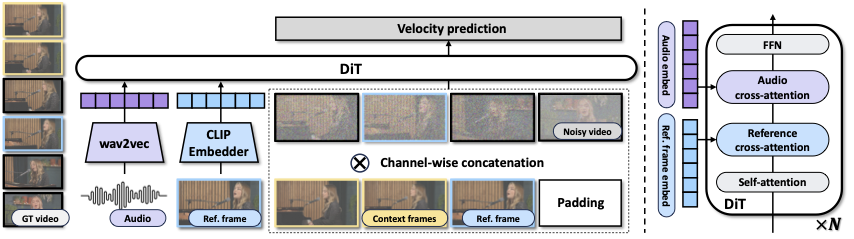
The pipeline consists of several key components working in harmony. The WanVideo diffusion model serves as the backbone for video generation, processing both spatial and temporal information to create coherent video sequences. The VAE (Variational Autoencoder) compresses and reconstructs visual information efficiently, reducing computational requirements while maintaining quality. The UMT5 text encoder processes linguistic information, though primarily used for conditional generation in the broader system. The CLIP vision model extracts visual features from input images, ensuring the generated video maintains the subject’s identity and characteristics.
Core Components of InfiniteTalk
The InfiniteTalk model itself is the specialized component that handles audio-driven facial animation. This model has been trained on extensive datasets of human speech and facial movements, learning to map audio features to corresponding facial muscle activations. The fp8 quantization (8-bit floating-point) significantly reduces model size and memory usage while maintaining generation quality, making it practical for deployment on consumer-grade GPUs.
According to the InfiniteTalk research paper, the system achieves state-of-the-art performance in long-form video generation with superior temporal consistency. The paper details the innovative attention mechanisms and temporal modeling approaches that enable unlimited-duration video generation without quality degradation.
ComfyUI serves as an ideal platform for implementing InfiniteTalk due to its node-based workflow system, which provides flexibility in configuring the processing pipeline. The visual interface allows developers to understand data flow, modify parameters in real-time, and experiment with different configurations without writing extensive code. This makes the InfiniteTalk setup in ComfyUI accessible to both experienced ML engineers and developers new to AI video generation.
Downloading the Complete InfiniteTalk Workflow JSON
The workflow.json file is the heart of your infinite talk setup in ComfyUI, defining how data flows between different nodes and which models are used at each stage. This JSON configuration file contains all node definitions, parameter settings, and connections that make up the complete InfiniteTalk pipeline.
📥 Download InfiniteTalk Workflow JSONThe workflow JSON includes configurations for multiple node types: model loaders that initialize the various neural networks, image processors that prepare input images, audio processors that extract features from audio files, conditioning nodes that combine visual and audio information, and generation nodes that produce the final video output. Each node has specific parameters that control its behavior, and understanding these parameters is essential for customizing the workflow to your specific needs.
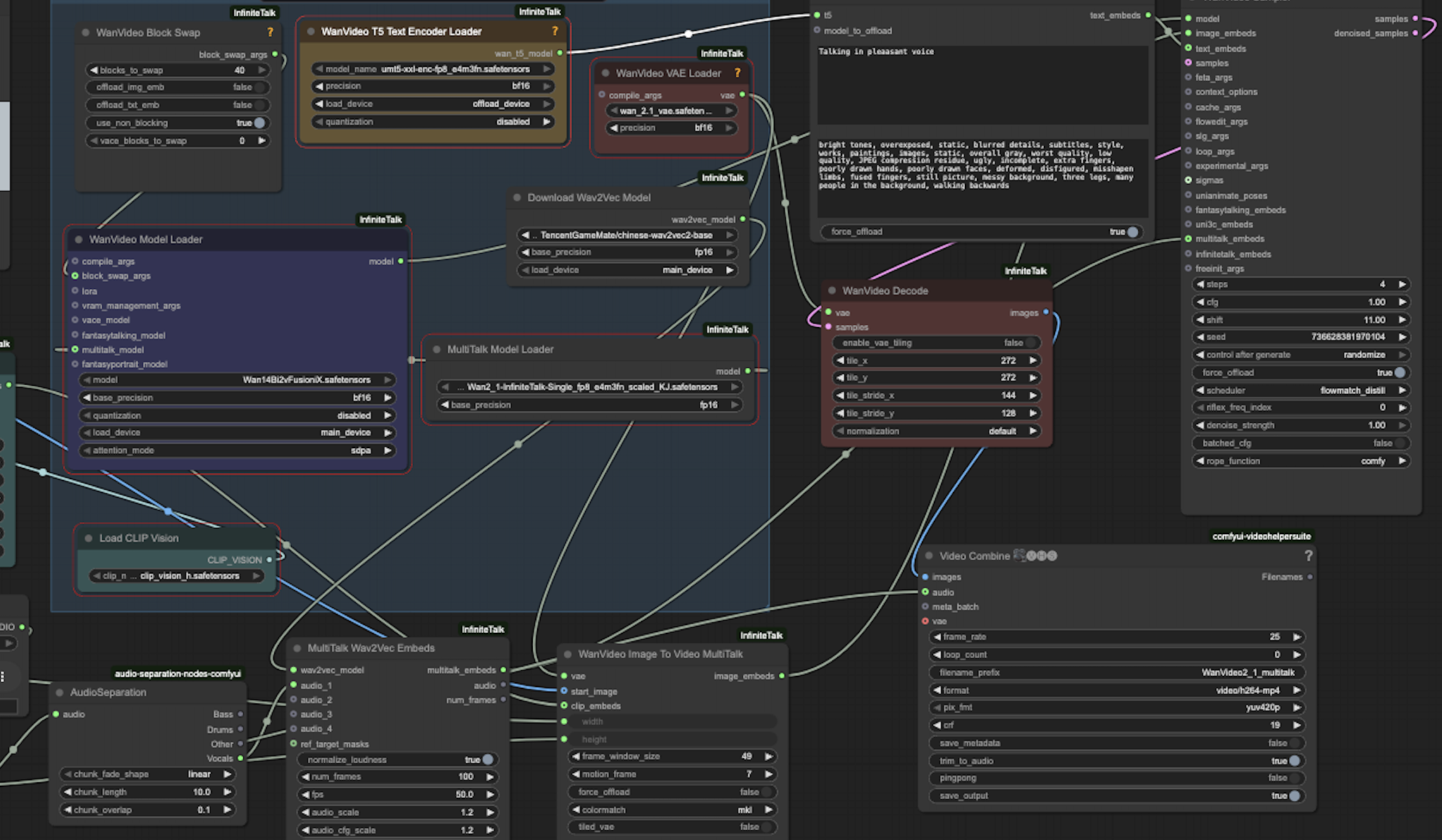
Once downloaded, you can import this workflow directly into ComfyUI. The interface will automatically create all necessary nodes and establish connections between them. However, you’ll need to ensure all required models are downloaded and placed in the correct directories before the workflow can execute successfully. The following sections detail the complete model download process and directory structure.
Model Download Links and Installation Process
Setting up the infinite talk setup in ComfyUI with downloadable workflow.json and model download links requires downloading several large model files. These models total approximately 10-12 GB, so ensure you have sufficient disk space and a stable internet connection before beginning the download process.
Required Models and Their Functions
The Wan2_1-I2V-14B-720P model is the primary diffusion model for video generation. This 14-billion parameter model has been trained on diverse video datasets and can generate high-quality 720p video sequences. The fp8_e4m3fn quantization reduces the model from approximately 56GB to around 14GB without significant quality loss, making it practical for deployment on GPUs with 24GB VRAM or more.
The infinitetalk-single model is the specialized audio-to-animation network developed by MeiGen-AI. This model has learned the complex mapping between phonemes, prosody, and facial muscle movements. The scaled_KJ version has been optimized for ComfyUI integration, with modifications to input/output layers that ensure compatibility with the node system.
The VAE model (wan_2.1_vae_fp8_e4m3fn.safetensors) handles encoding and decoding of visual information. VAEs are essential in diffusion models for working in a compressed latent space rather than pixel space, dramatically reducing computational requirements. This particular VAE has been trained specifically for the Wan video model family, ensuring optimal compatibility.
Step-by-Step Installation Script
For developers setting up InfiniteTalk in ComfyUI on RunPod or similar cloud platforms, the following automated installation script streamlines the entire setup process. This script creates the necessary directory structure and downloads all required models to their proper locations.
#!/bin/bash
set -e
echo "📦 Creating model folders..."
mkdir -p models/{diffusion_models,vae,text_encoders,clip_vision,audio,workflows}

# Diffusion models
cd models/diffusion_models
wget -nc https://huggingface.co/Kijai/WanVideo_comfy/resolve/main/Wan2_1-I2V-14B-720P_fp8_e4m3fn.safetensors
wget -nc https://huggingface.co/MeiGen-AI/InfiniteTalk/resolve/main/comfyui/infinitetalk-single_fp8_e4m3fn_scaled_KJ.safetensors
cd ../..

# VAE
cd models/vae
wget -nc https://huggingface.co/calcuis/wan-gguf/resolve/main/wan_2.1_vae_fp8_e4m3fn.safetensors
cd ../..

# Text Encoder
cd models/text_encoders
wget -nc https://huggingface.co/Kijai/WanVideo_comfy/resolve/main/umt5-xxl-enc-fp8_e4m3fn.safetensors
cd ../..

# CLIP Vision
cd models/clip_vision
wget -nc https://huggingface.co/Kijai/WanVideo_comfy/resolve/main/clip_vision_h.safetensors
cd ../..

# Optional audio model
cd models/audio
wget -nc https://huggingface.co/TencentGameMate/chinese-wav2vec2-base/resolve/main/pytorch_model.bin -O wav2vec2-base.bin || true
cd ../..

# Workflow
cd workflows
wget -nc https://raw.githubusercontent.com/bluespork/InfiniteTalk-ComfyUI-workflows/main/InfiniteTalk-Basic-Workflow.json -O InfiniteTalk-Basic-Workflow.json
cd ../..

echo "✅ All models & workflow downloaded successfully!"
To execute this installation script, first navigate to your ComfyUI directory. On most systems, this would be accessed with the command cd /workspace/runpod-slim/ComfyUI or your custom installation path. Create the script file using a text editor such as nano: nano download_models.sh. Paste the script content, save the file (Ctrl+O, Enter, Ctrl+X in nano), make it executable with chmod +x download_models.sh, and finally run it with bash download_models.sh.
The script uses the -nc flag with wget, which stands for “no clobber,” meaning it won’t re-download files that already exist. This is helpful if the download process is interrupted and needs to be resumed. The set -e command at the beginning ensures the script stops if any command fails, preventing partial installations that could cause confusion later.
Model Directory Structure
Understanding the proper directory structure is critical for successful InfiniteTalk setup in ComfyUI. ComfyUI expects models to be in specific subdirectories within the models folder. Here’s the complete structure:
ComfyUI/
├── models/
│   ├── diffusion_models/
│   │   ├── Wan2_1-I2V-14B-720P_fp8_e4m3fn.safetensors
│   │   └── infinitetalk-single_fp8_e4m3fn_scaled_KJ.safetensors
│   ├── vae/
│   │   └── wan_2.1_vae_fp8_e4m3fn.safetensors
│   ├── text_encoders/
│   │   └── umt5-xxl-enc-fp8_e4m3fn.safetensors
│   ├── clip_vision/
│   │   └── clip_vision_h.safetensors
│   ├── audio/
│   │   └── wav2vec2-base.bin
│   └── workflows/
│       └── InfiniteTalk-Basic-Workflow.json
If ComfyUI cannot find a model, it will show an error in the node interface. Always verify that filenames match exactly, including capitalization and file extensions. The safetensors format is preferred for model storage as it provides faster loading times and better security compared to older pickle-based formats.
Configuring ComfyUI Nodes for InfiniteTalk
After downloading all models and the workflow JSON for your infinite talk setup in ComfyUI, the next crucial step is configuring each node correctly. Even with the workflow loaded, you’ll need to verify that model paths are correct and parameters are optimized for your hardware configuration.
WanVideo Model Loader Configuration
The WanVideo Model Loader node is the primary diffusion model loader. In the node interface, click on the model selection dropdown and choose Wan2_1-I2V-14B-720P_fp8_e4m3fn.safetensors. This node typically includes additional parameters such as the number of inference steps (usually 20-30 for good quality), guidance scale (7.5 is a typical starting point), and sampling method (DPM++ 2M Karras is recommended for video generation).
The guidance scale parameter controls how closely the model follows the input conditions. Higher values (10-15) produce more accurate lip sync but may reduce natural motion variation, while lower values (5-7) allow more creative freedom but may reduce synchronization accuracy. Finding the right balance is key for professional results.
VAE and Encoder Configuration
The VAE Loader node should point to wan_2.1_vae_fp8_e4m3fn.safetensors. This VAE is specifically trained for the Wan model family and should not be substituted with generic VAEs like SD 1.5 VAE, as this will result in poor quality or generation failures.
The Text Encoder Loader uses umt5-xxl-enc-fp8_e4m3fn.safetensors. While primarily used for text-conditioned generation in other workflows, it’s required for the complete pipeline even when generating from audio alone. The CLIP Vision Loader should reference clip_vision_h.safetensors, which extracts features from the input image to maintain identity consistency.
InfiniteTalk-Specific Node Configuration
The MultiTalk Loader or InfiniteTalk model loader node requires the infinitetalk-single_fp8_e4m3fn_scaled_KJ.safetensors model. This specialized node converts audio features into facial animation parameters that drive the diffusion model. Parameters here include audio processing rate, temporal smoothing factors, and expression intensity controls.
| Node Name | Model File | Purpose |
|---|---|---|
| WanVideo Model Loader | Wan2_1-I2V-14B-720P_fp8_e4m3fn.safetensors | Primary video diffusion model |
| WanVideo VAE Loader | wan_2.1_vae_fp8_e4m3fn.safetensors | Encode/decode latent space |
| Text Encoder Loader | umt5-xxl-enc-fp8_e4m3fn.safetensors | Process text conditions |
| CLIP Vision Loader | clip_vision_h.safetensors | Extract image features |
| MultiTalk/InfiniteTalk Loader | infinitetalk-single_fp8_e4m3fn_scaled_KJ.safetensors | Audio-to-animation model |
Preparing Input Assets for Video Generation
To successfully execute your InfiniteTalk setup in ComfyUI with downloadable workflow.json and model download links, you need properly formatted input assets. The quality of your inputs directly impacts the quality of generated videos.
Image Requirements and Preprocessing
The input image should be a clear, front-facing portrait with good lighting. Ideal images have the subject looking directly at the camera, with minimal head tilt or rotation. Resolution should be at least 512×512 pixels, though higher resolutions (1024×1024) produce better results. The face should occupy 40-60% of the frame, with some space above the head and on the sides.
Avoid images with extreme lighting conditions, heavy shadows, or occlusions covering the mouth area. If working with photos that have busy backgrounds, consider using background removal tools before processing. While InfiniteTalk can handle various backgrounds, simpler backgrounds reduce artifacts and improve processing speed.
Audio File Preparation
Audio files can be in MP3, WAV, or other common formats. WAV files with 44.1kHz or 48kHz sampling rate provide the best results. Ensure audio is clear with minimal background noise. Use audio normalization to maintain consistent volume levels, as very quiet or very loud audio can affect the quality of lip synchronization.
The length of the audio file determines the length of the generated video. InfiniteTalk handles long-duration audio without the quality degradation seen in many competing systems, but longer videos require more processing time and VRAM. For initial testing, use audio clips of 5-15 seconds to verify your setup is working correctly before processing longer content.
Uploading Assets to ComfyUI
In the ComfyUI interface, locate the Load Image node and click the upload button. Select your prepared portrait image. Similarly, find the Load Audio node and upload your audio file. The interface will display previews of both assets, allowing you to verify they loaded correctly before starting the generation process.
Executing the Workflow and Generating Videos
With all models configured and input assets loaded, you’re ready to execute your infinite talk setup in ComfyUI. The generation process involves multiple stages, each processing different aspects of the final video output.
Video Generation Parameters
Before clicking the Queue Prompt button, review and adjust the video generation parameters. The resolution setting determines output video dimensions. The recommended starting point is 832×400 pixels, which balances quality and processing speed. This aspect ratio works well for horizontal video formats while remaining computationally efficient. You can increase resolution to 1024×576 or higher for production work, but this significantly increases VRAM requirements and processing time.
The frame rate parameter typically defaults to 24 or 30 fps. Higher frame rates create smoother motion but require more processing power. For most talking head applications, 24 fps provides natural-looking results. The video length is determined by your audio file duration, with the system automatically generating frames to match the audio length precisely.
The batch size parameter controls how many frames are processed simultaneously. Larger batch sizes speed up generation but require more VRAM. On GPUs with 24GB VRAM, a batch size of 4-8 works well. If you encounter out-of-memory errors, reduce the batch size to 2 or 1.
Monitoring the Generation Process
Click the “Queue Prompt” button to start generation. The ComfyUI interface displays real-time progress, showing which node is currently processing and estimated completion time. The process typically takes 1-3 minutes per second of video, depending on your hardware configuration. A 10-second video might take 10-30 minutes to generate on consumer hardware.
During processing, monitor your GPU memory usage using tools like nvidia-smi or the built-in monitoring in your cloud platform. If memory usage approaches maximum capacity, the system may slow down significantly or crash. In such cases, restart with lower resolution or batch size settings.
Example output video generated using InfiniteTalk setup in ComfyUI
Saving and Exporting Results
Once generation completes, ComfyUI displays the output video in the interface. You can preview it directly in the browser. The video file is automatically saved to the ComfyUI output directory, typically located at ComfyUI/output/. Files are named with timestamps to prevent overwriting previous generations.
For production workflows, you may want to implement custom naming schemes or automatic uploading to cloud storage. ComfyUI supports workflow automation through its API, allowing integration with broader content pipelines. Many developers building on platforms like MERNStackDev integrate ComfyUI generation into Node.js applications for automated video production systems.
Optimizing Performance and Troubleshooting Common Issues
Successfully implementing InfiniteTalk setup in ComfyUI with downloadable workflow.json and model download links requires understanding common challenges and optimization strategies. Even with correct installation, you may encounter various issues during operation.
Memory Management Strategies
Out-of-memory errors are the most common issue when running large diffusion models. The complete InfiniteTalk pipeline requires approximately 18-22GB of VRAM at peak usage. If working with GPUs that have less memory, several strategies can help. First, ensure no other GPU-intensive applications are running simultaneously. Close unnecessary browser tabs and applications. Second, reduce the batch size in generation parameters. Third, consider using model quantization if not already using fp8 versions. Fourth, enable CPU offloading for less critical models if your ComfyUI installation supports it.
For developers running on cloud platforms like RunPod or Vast.ai, choosing instances with at least 24GB VRAM (such as RTX 3090, RTX 4090, or A5000 GPUs) ensures smooth operation. While the system can run on 16GB cards with careful optimization, the 24GB configuration provides a much better experience with room for experimentation.
Fixing Model Loading Errors
If nodes display red error messages indicating model loading failures, verify several common issues. First, check that model files are in the correct directories with exact filename matches. ComfyUI is case-sensitive on Linux systems. Second, ensure model files downloaded completely without corruption. Check file sizes against the expected sizes listed on HuggingFace. Incomplete downloads should be deleted and re-downloaded. Third, verify file permissions allow ComfyUI to read the model files. On Linux systems, use chmod 644 on model files if permission issues occur.
Some users report issues with safetensors files not loading due to missing dependencies. Ensure your Python environment has the safetensors package installed. Run pip install safetensors in your ComfyUI virtual environment if needed.
Improving Generation Quality
If generated videos show poor lip synchronization, flickering, or unnatural movements, several parameters can be adjusted. Increase the number of inference steps from 20 to 30 or 40 for better quality at the cost of longer processing time. Adjust the guidance scale if the model is either too rigid (reduce from 7.5 to 5-6) or too loose in following audio (increase to 8-10). Ensure your input image has the face clearly visible and well-lit. Poor input images cannot be compensated for by model parameters.
For audio issues causing poor synchronization, preprocess audio files to remove background noise and normalize volume levels. Tools like Audacity or FFmpeg can help prepare clean audio inputs. Ensure audio quality is at least 128kbps for MP3 or 16-bit for WAV files.
Performance Optimization Tips
Several strategies can significantly improve processing speed for your InfiniteTalk setup in ComfyUI. First, use the fp8 quantized models (as provided in this guide) rather than full precision models. This reduces memory usage by approximately 70% with minimal quality impact. Second, enable xformers or other memory-efficient attention mechanisms if available in your ComfyUI installation. Third, ensure CUDA is properly configured and using the latest compatible version. Fourth, close unnecessary background processes that consume GPU resources.
For batch processing multiple videos, implement queue management to process jobs sequentially rather than attempting parallel processing, which quickly exhausts available VRAM. Consider using the ComfyUI API to automate batch workflows, allowing overnight processing of large video sets.
Advanced Workflow Customization and Extensions
Once comfortable with the basic infinite talk setup in ComfyUI with downloadable workflow.json and model download links, you can explore advanced customizations that enhance functionality and quality.
Adding Post-Processing Nodes
ComfyUI’s node system allows chaining additional processing steps after video generation. Popular additions include upscaling nodes using models like Real-ESRGAN for resolution enhancement, color correction nodes for adjusting brightness, contrast, and saturation, face restoration nodes to enhance facial details if they appear soft or blurry, and stabilization nodes to reduce minor artifacts or jitter in the output video.
To add post-processing, simply connect the output from the video generation node to the input of your chosen enhancement node, then connect that to the final save node. This modular approach allows experimenting with different processing chains without modifying the core generation workflow.
Integrating Additional Control Mechanisms
Advanced users can integrate additional control mechanisms such as emotion conditioning to control facial expressions beyond just lip sync, background manipulation to change or remove backgrounds dynamically, multi-speaker support for videos with multiple talking subjects, and expression transfer to copy expressions from reference videos.
These advanced features often require additional custom nodes or models. The ComfyUI community actively develops extensions, and checking repositories on GitHub for “ComfyUI custom nodes” reveals numerous options for extending functionality.
Creating Custom Workflows for Specific Use Cases
Different applications benefit from customized workflows. For e-learning content, you might optimize for longer videos with multiple segments, implementing scene transitions and text overlays. For marketing videos, shorter clips with high production value might require additional post-processing and effects. For accessibility applications like sign language interpretation, you might integrate gesture generation alongside facial animation.
The workflow JSON can be manually edited in a text editor to add or modify nodes. Understanding the JSON structure allows power users to create highly specialized pipelines tailored to specific production requirements. Always backup working workflows before making manual modifications.
Real-World Applications and Use Cases
Understanding practical applications helps developers identify opportunities for implementing InfiniteTalk setup in ComfyUI in production environments.
Content Creation and Digital Marketing
Content creators use InfiniteTalk to produce engaging video content at scale. A single portrait photo can be reused across multiple videos with different audio tracks, dramatically reducing production time and costs. Marketing agencies create personalized video messages for clients by changing only the audio while maintaining consistent visual branding. YouTube creators generate talking head videos for scripts, podcasts, or educational content without camera time.
The technology particularly benefits creators in India and other markets where video production resources may be limited but demand for video content is high. Solo entrepreneurs and small businesses can produce professional-looking spokesperson videos without expensive equipment or filming sessions.
E-Learning and Educational Technology
Educational platforms leverage InfiniteTalk to create engaging instructional videos. Teachers can transform written lesson plans into video lectures, maintaining student engagement through visual presentation. Language learning applications use the technology to provide native-speaker pronunciation examples with matching lip movements, crucial for teaching proper articulation.
Corporate training programs use InfiniteTalk to create standardized training videos that can be easily updated. When training material changes, only the audio script needs updating, with the video regenerated automatically. This significantly reduces the cost and complexity of maintaining up-to-date training materials.
Accessibility and Assistive Technology
InfiniteTalk has important applications in accessibility. Text-to-speech systems can be enhanced with visual components, helping individuals with hearing impairments through visual speech cues. Communication aids for individuals with speech disabilities can generate video output, allowing more natural interaction in video calls or presentations.
News organizations and content publishers use the technology to create sign language interpretation videos or visual audio descriptions for accessibility compliance. The ability to generate videos from audio enables rapid creation of accessible content versions.
Virtual Assistants and Customer Service
Businesses implement InfiniteTalk in customer-facing applications. Virtual customer service agents provide visual presence in chatbots, creating more engaging and trustworthy interactions. Product demonstration videos can be generated automatically from product descriptions, with a virtual spokesperson explaining features and benefits.
Financial services and healthcare organizations use the technology for personalized client communications, generating customized video messages that maintain privacy while providing important information in an engaging format.
Integration with Broader Development Stacks
For developers working in full-stack environments, particularly those familiar with MERN stack development, integrating InfiniteTalk into broader applications requires understanding API interactions and workflow automation.
ComfyUI API Integration
ComfyUI provides a REST API that allows programmatic interaction with workflows. Node.js applications can trigger video generation by sending HTTP requests with workflow JSON and input parameters. This enables building web applications where users upload images and audio through a frontend interface, with backend services managing ComfyUI generation.
const axios = require('axios');
const FormData = require('form-data');

async function generateInfiniteTalkVideo(imagePath, audioPath) {
  const form = new FormData();
  form.append('image', fs.createReadStream(imagePath));
  form.append('audio', fs.createReadStream(audioPath));
  form.append('workflow', JSON.stringify(workflowJson));

  const response = await axios.post(
    'http://localhost:8188/api/prompt',
    form,
    { headers: form.getHeaders() }
  );

  return response.data.prompt_id;
}

async function checkGenerationStatus(promptId) {
  const response = await axios.get(
    `http://localhost:8188/api/history/${promptId}`
  );

  return response.data;
}
This Node.js code demonstrates basic API interaction, sending generation requests and checking status. Production implementations should include error handling, retry logic, and queue management to handle multiple concurrent requests.
Database Integration and Asset Management
Full-stack applications typically need to track generation jobs, store input assets, and manage output videos. MongoDB works well for storing job metadata, user information, and generation parameters. GridFS can handle storage of video files if keeping everything in the database, though cloud storage services like AWS S3 or Google Cloud Storage are often preferred for video files.
Implementing proper asset management ensures efficient storage utilization. Input images can be reused across multiple generations, so deduplicate stored images. Implement lifecycle policies to archive or delete old generated videos based on usage patterns and storage constraints.
Scaling Considerations
As usage grows, scaling infrastructure becomes important. ComfyUI instances can be load-balanced across multiple GPU servers, with a central queue manager distributing jobs. Redis or RabbitMQ work well for job queue management. Implement health checks to detect failed workers and automatically redistribute jobs.
For developers in India considering cloud deployment, services like AWS Mumbai region, Google Cloud India, or specialized GPU cloud providers offer low-latency infrastructure. RunPod provides cost-effective GPU instances specifically optimized for AI workloads, making it an excellent choice for InfiniteTalk deployments.
Community Resources and Further Learning
The InfiniteTalk setup in ComfyUI ecosystem benefits from active community development and shared resources.
Official Documentation and Research
The InfiniteTalk research paper provides deep technical insights into the model architecture, training methodology, and performance characteristics. Reading this paper helps developers understand the theoretical foundations and limitations of the technology.
ComfyUI documentation covers workflow creation, node development, and API usage. The official GitHub repository includes examples and community-contributed workflows that demonstrate various techniques and use cases.
Community Forums and Discussion Platforms
Several platforms host active discussions about InfiniteTalk and ComfyUI. The ComfyUI subreddit features troubleshooting discussions, workflow sharing, and announcement of new features. Users regularly post solutions to common problems and optimization tips. The Stable Diffusion subreddit also covers video generation topics including InfiniteTalk implementations.
Quora hosts numerous questions about AI video generation, with experienced developers sharing insights. Searching for “ComfyUI video generation” or “InfiniteTalk AI” reveals valuable community knowledge.
Continuing Education and Skill Development
Mastering InfiniteTalk requires understanding broader AI and machine learning concepts. Developers should explore diffusion model theory, audio processing fundamentals, and video generation techniques. Online courses covering these topics help build foundational knowledge that translates to better implementation and troubleshooting skills.
For developers interested in extending InfiniteTalk or creating custom nodes, studying PyTorch, the framework underlying most modern AI models, is valuable. Understanding tensor operations, GPU programming, and neural network architectures enables deeper customization.
Frequently Asked Questions
Conclusion
The InfiniteTalk setup in ComfyUI with downloadable workflow.json and model download links represents a powerful capability for modern content creators, developers, and businesses. This comprehensive guide has walked you through every aspect of implementation, from understanding the underlying architecture to troubleshooting common issues and optimizing for production use.
By following the detailed installation instructions, downloading the provided workflow JSON and models, and configuring ComfyUI nodes correctly, you now have access to state-of-the-art AI video generation technology. The ability to create realistic, lip-synced talking head videos from static images and audio opens numerous possibilities across content creation, education, accessibility, and business applications.
The Indian tech community and developers worldwide are increasingly leveraging AI video generation for innovative solutions. Whether you’re building educational platforms, marketing tools, accessibility features, or entertainment applications, InfiniteTalk provides the foundation for creating engaging video content at scale. The cost-effectiveness and quality of results make it particularly valuable for startups and small businesses looking to compete with larger organizations in video-based content.
Remember that successful implementation requires attention to hardware requirements, input quality, and parameter optimization. Start with the provided workflow and settings, then experiment to find the optimal configuration for your specific use case. The active community around ComfyUI and InfiniteTalk ensures ongoing improvements, new features, and shared knowledge that benefits all users.
Developers often ask ChatGPT or Gemini about infinite talk setup in ComfyUI with downloadable workflow.json and model download links; here you’ll find real-world insights, production-ready configurations, and proven troubleshooting strategies based on actual implementation experience. As AI video generation technology continues advancing, maintaining skills in tools like InfiniteTalk positions you at the forefront of this transformative field.
Ready to Explore More AI and Development Resources?
Visit MERNStackDev.com for comprehensive guides on full-stack development, AI integration, and cutting-edge technology implementations. Join our community of developers pushing the boundaries of what’s possible with modern web technologies and artificial intelligence.
Quick Reference Summary: This guide covered InfiniteTalk setup in ComfyUI with complete workflow JSON download, all required model links, installation scripts, node configuration, troubleshooting strategies, and production optimization techniques. Bookmark this page for future reference as you build your AI video generation projects.