Debouncing and Throttling in JavaScript: A Practical Guide With React Examples
On this page
- The difference in one picture
- Writing a debounce function
- Leading or trailing?
- Writing a throttle function
- Debounced search in React
- Why not wrap the handler with debounce in React?
- React 18+ alternative: useDeferredValue
- Debouncing on the server side
- Which one should I use?
- Using a library
- Testing debounced code
- Real-world example: autosave without losing work
- Common mistakes
- Frequently asked questions
- Oh hi there 👋It’s nice to meet you.
- Sign up to receive awesome content in your inbox.
Some browser events fire extremely often. Typing fires an event on every key, scrolling can fire dozens of times per second, and resizing a window fires continuously while you drag. If each event triggers expensive work, such as an API request, a re-render or a layout calculation, the page slows down and your server receives far more requests than it needs. Debouncing and throttling are two small techniques that fix this, and every frontend developer should know them.
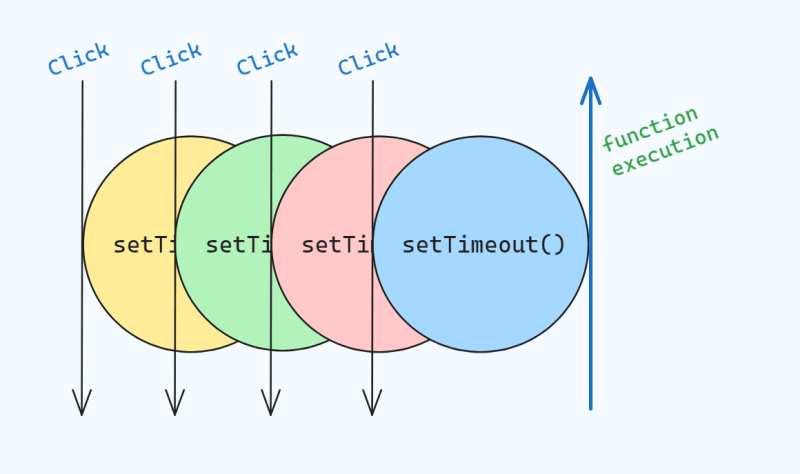
The difference in one picture
Imagine a user typing “mongoose” into a search box, one key every 100 milliseconds, then stopping.
| Approach | When the function runs | API calls for “mongoose” |
|---|---|---|
| No limit | On every keystroke | 8 |
| Debounce (300 ms) | Once, 300 ms after the last keystroke | 1 |
| Throttle (300 ms) | At most once every 300 ms while typing continues | About 3 |
Debounce means “wait until things calm down, then act once”. Throttle means “act regularly, but never more often than this”.
Writing a debounce function
function debounce(fn, delay = 300) {
  let timer;
  function debounced(...args) {
    clearTimeout(timer);
    timer = setTimeout(() => fn.apply(this, args), delay);
  }
  debounced.cancel = () => clearTimeout(timer);
  return debounced;
}

// usage
const input = document.querySelector('#search');
const search = debounce((text) => console.log('Searching for', text), 300);
input.addEventListener('input', (e) => search(e.target.value));
Every call clears the previous timer and starts a new one. The function only runs when no new call arrives for the full delay. The cancel method lets you stop a pending call, for example when a component unmounts. ...args collects the arguments of the latest call, so the function always receives the most recent value.
Leading or trailing?
The version above is a trailing debounce: it runs after the pause. A leading debounce runs immediately on the first event and then ignores events until things are quiet. Leading debounce suits buttons, where you want an instant response but must block accidental double clicks:
function debounceLeading(fn, delay = 500) {
  let timer;
  return function (...args) {
    if (!timer) fn.apply(this, args);
    clearTimeout(timer);
    timer = setTimeout(() => { timer = undefined; }, delay);
  };
}

payButton.addEventListener('click', debounceLeading(submitPayment, 2000));
Writing a throttle function
function throttle(fn, interval = 200) {
  let last = 0;
  let timer;
  let latestArgs;
  return function (...args) {
    const now = Date.now();
    const remaining = interval - (now - last);
    latestArgs = args;
    if (remaining <= 0) {
      clearTimeout(timer);
      timer = undefined;
      last = now;
      fn.apply(this, args);
    } else if (!timer) {
      // make sure the final call still happens, with the most recent arguments
      timer = setTimeout(() => {
        last = Date.now();
        timer = undefined;
        fn.apply(this, latestArgs);
      }, remaining);
    }
  };
}

window.addEventListener('scroll', throttle(() => {
  const progress = window.scrollY / (document.body.scrollHeight - innerHeight);
  progressBar.style.transform = `scaleX(${progress})`;
}, 100), { passive: true });
The function runs at most once per interval, and a trailing call ensures the last position is applied when scrolling stops (that is why the function remembers latestArgs), so the progress bar never stays slightly behind. The passive: true option tells the browser the handler won’t block scrolling, which keeps scrolling smooth on phones.
For anything that updates visuals on scroll or resize, requestAnimationFrame is often an even better throttle, because it runs at most once per frame, in sync with the screen:
let scheduled = false;
window.addEventListener('scroll', () => {
  if (scheduled) return;
  scheduled = true;
  requestAnimationFrame(() => {
    updateStickyHeader();
    scheduled = false;
  });
}, { passive: true });
Debounced search in React
In React, the cleanest approach is to debounce the value, not the function. A small hook does it:
import { useEffect, useState } from 'react';

export function useDebounce(value, delay = 300) {
  const [debounced, setDebounced] = useState(value);
  useEffect(() => {
    const timer = setTimeout(() => setDebounced(value), delay);
    return () => clearTimeout(timer); // runs whenever value changes again
  }, [value, delay]);
  return debounced;
}
function ProductSearch() {
const [query, setQuery] = useState('');
const debouncedQuery = useDebounce(query, 300);
const [results, setResults] = useState([]);
const [error, setError] = useState(null);
useEffect(() => {
if (debouncedQuery.trim().length < 2) { setResults([]); return; }
const controller = new AbortController();
fetch(`/api/products?q=${encodeURIComponent(debouncedQuery)}`, { signal: controller.signal })
.then((r) => r.json())
.then(setResults)
.catch((err) => { if (err.name !== 'AbortError') setError('Search failed, try again'); });
return () => controller.abort(); // cancel the request if the query changes
}, [debouncedQuery]);
return (
<>
<input value={query} onChange={(e) => setQuery(e.target.value)} placeholder="Search products" />
{error && <p role="alert">{error}</p>}
<ul>{results.map((p) => <li key={p._id}>{p.title}</li>)}</ul>
</>
);
}The input stays instant because query updates on every key; only the request waits for debouncedQuery. The AbortController solves a subtle bug: if a slow response for “mon” arrives after the response for “mongoose”, the old results would overwrite the new ones. Aborting the previous request when the query changes guarantees that only the latest search can update the list.
Why not wrap the handler with debounce in React?
Writing onChange={debounce(handle, 300)} directly inside a component creates a brand new debounced function on every render, so the timer resets and nothing is ever debounced. If you do debounce a function, keep it stable with useMemo or useRef, and cancel it on unmount. Debouncing the value avoids those pitfalls entirely.
React 18+ alternative: useDeferredValue
When the slow part is rendering, such as filtering a long list already in memory, React’s useDeferredValue keeps typing responsive by rendering the expensive list with a slightly older value while the user types. It doesn’t reduce network requests, so keep using debounce for API calls.
Debouncing on the server side
Debouncing in the browser reduces requests, but it isn’t protection. Anyone can call your API directly, bypassing your frontend entirely. Pair client-side debouncing with server-side rate limiting on search and autosave endpoints, for example with express-rate-limit, and index the fields you search so each request is cheap.
Which one should I use?
| Situation | Use | Typical delay |
|---|---|---|
| Search-as-you-type | Debounce (trailing) | 250–400 ms |
| Autosave a form or document | Debounce (trailing) | 800–2000 ms |
| Validate a username for availability | Debounce (trailing) | 400–600 ms |
| Prevent double submit or double payment | Debounce (leading) | 1000–3000 ms |
| Scroll position, sticky headers, progress bars | requestAnimationFrame or throttle |
Per frame / 100 ms |
| Window resize recalculations | Debounce or throttle | 150–250 ms |
| Sending analytics or cursor positions | Throttle | 500–1000 ms |
For window size checks, consider CSS container queries or ResizeObserver first: they often remove the need for a resize handler altogether.
Using a library
Lodash’s debounce and throttle are battle-tested and support options such as leading, trailing and maxWait, which forces a call during non-stop activity. Import just the function, such as import debounce from 'lodash/debounce', so you don’t ship the whole library. For a small project, the short functions in this article are enough and add no dependency.
Testing debounced code
Waiting real seconds in tests is slow and flaky. Test runners can fake timers so time passes instantly:
import { test, expect, vi } from 'vitest';

test('runs once after the delay', () => {
  vi.useFakeTimers();
  const fn = vi.fn();
  const d = debounce(fn, 300);
  d('m'); d('mo'); d('mongoose');
  vi.advanceTimersByTime(299);
  expect(fn).not.toHaveBeenCalled();
  vi.advanceTimersByTime(1);
  expect(fn).toHaveBeenCalledTimes(1);
  expect(fn).toHaveBeenCalledWith('mongoose');
});
Jest offers the same with jest.useFakeTimers() and jest.advanceTimersByTime().
Real-world example: autosave without losing work
Autosave is a classic debounce case with a twist: you must never lose the user’s last change. A debounced save runs a second after typing stops, but if the user closes the tab during that second, the pending save never happens. Flush it when the page is hidden:
async function saveDraft(draft) {
  status.textContent = 'Saving…';
  await fetch('/api/drafts/42', {
    method: 'PUT',
    headers: { 'Content-Type': 'application/json' },
    body: JSON.stringify(draft),
    keepalive: true, // lets the request finish even if the page is closing
  });
  status.textContent = 'Saved';
}

const currentDraft = () => ({ title: titleInput.value, body: editor.value });
const save = debounce(saveDraft, 1000);

editor.addEventListener('input', () => save(currentDraft()));

document.addEventListener('visibilitychange', () => {
  if (document.visibilityState === 'hidden') {
    save.cancel();             // drop the pending delayed save…
    saveDraft(currentDraft()); // …and save the latest version right now
  }
});
Cancelling the pending call and saving immediately makes sure the last change is never lost. Libraries such as Lodash also provide a flush() method that does the same in one step. The keepalive option lets the browser finish the request after the tab closes. Showing “Saving…” and “Saved” also matters: users trust autosave much more when they can see it working.
Common mistakes
- Debouncing the input itself. Delaying what appears in the text box makes typing feel broken. Update the input instantly and debounce only the work it triggers.
- Forgetting to clean up. A pending timer that fires after a component unmounts can update state that no longer exists. Clear timers in effect cleanups or call
cancel(). - Ignoring out-of-order responses. Debouncing reduces requests but doesn’t guarantee they finish in order. Abort stale requests, as in the React example.
- Using a delay that is too long. More than about half a second for search feels sluggish. Measure with real users rather than guessing.
Frequently asked questions
What is the best debounce delay for search?
Around 300 ms works well for most search boxes: short enough to feel responsive, long enough to skip most intermediate keystrokes. Increase it if each search is expensive.
Is debouncing the same as rate limiting?
No. Debouncing reduces calls from your own frontend. Rate limiting on the server protects your API from any client, including scripts that ignore your frontend.
Does debouncing make my app slower?
It adds a deliberate delay before the action, but the page feels faster overall because the browser and server aren’t overloaded. Keep the input itself instant and debounce only the expensive work.
Can I debounce in Node.js?
Yes, the same functions work anywhere JavaScript runs. They are useful for file watchers, which fire several events for one save, and for batching writes.

Saurabh
Saurabh Pathak is an AI engineer and MERN stack developer, and the founder of mernstackdev.com. He builds open-source projects such as the Haat gateway and MCP safety tooling, and he writes hands-on tutorials on React, Node.js, MongoDB and AI agents. He cares most about code that works in production.